In the browser
Enter the 6-character key at flick.gdlabs.xyz. List, download, and upload — no extension, no login, any browser.

ACCESS YOUR PHONE FROM YOUR COMPUTER
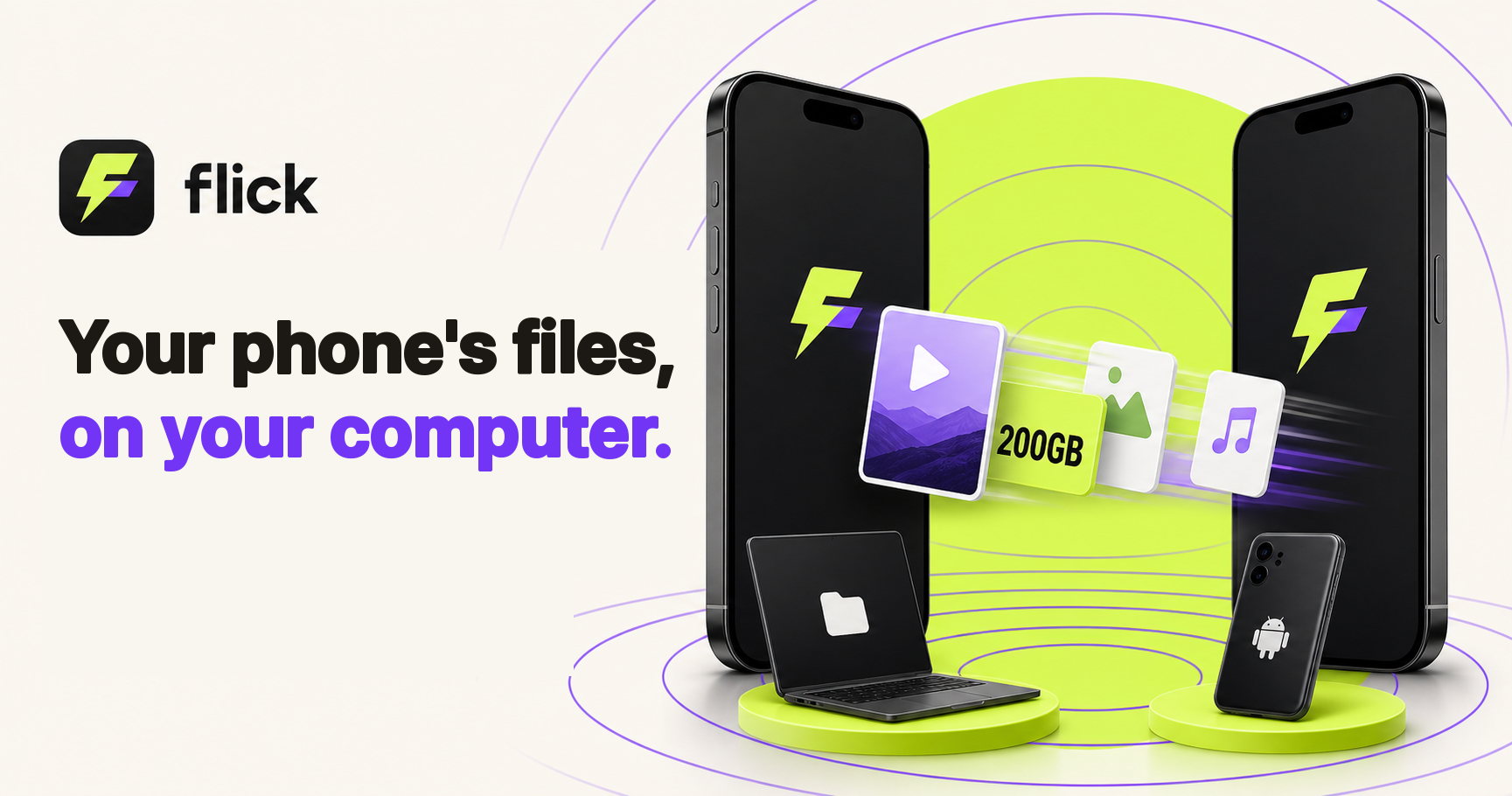
Open your phone in a browser tab, or mount it as a drive in Finder, and copy files off — or back on — with no cloud sync and no cable.
Search for Flick File Transfer
HOW YOU REACH IT
Enter the 6-character key at flick.gdlabs.xyz. List, download, and upload — no extension, no login, any browser.
Run flick mount and your phone maps to ~/Flick over macOS WebDAV — no macFUSE. Use cp, open in any app, or script it. Read-only.
Bytes go peer-to-peer over WebRTC when the network allows, so there's no upload-then-download wait — otherwise a relay that expires with the session.
HOW IT WORKS
A 6-character key appears. Your phone stays reachable while the Share screen is open.
Open flick.gdlabs.xyz in a browser, or run flick <key> — or flick mount <key> — in a terminal.
Download in the browser (and upload back), or cp straight from the mounted drive.
 Your computer
NO ALWAYS-ON SERVER
There's no always-on server holding your library. Your phone is reachable only while the Share screen is open, through a 6-character key that expires within the hour. In peer-to-peer mode the bytes never touch a server; otherwise they pass through a relay that clears with the session.
iPhone on the App Store · open in any browser · Mac CLI via Homebrew